How to fix closed eyes in an old photo
Restore an old print and open the eyes of someone who blinked decades ago, with old photo restoration and the eye tools in Expression Editor - Reshot AI.
Scan or photograph the print, open it in Expression Editor - Reshot AI and run the old photo restoration first. Then tap the face and open the eyes with the eye slider or Fix Everything. Results depend on how large and sharp the face is.
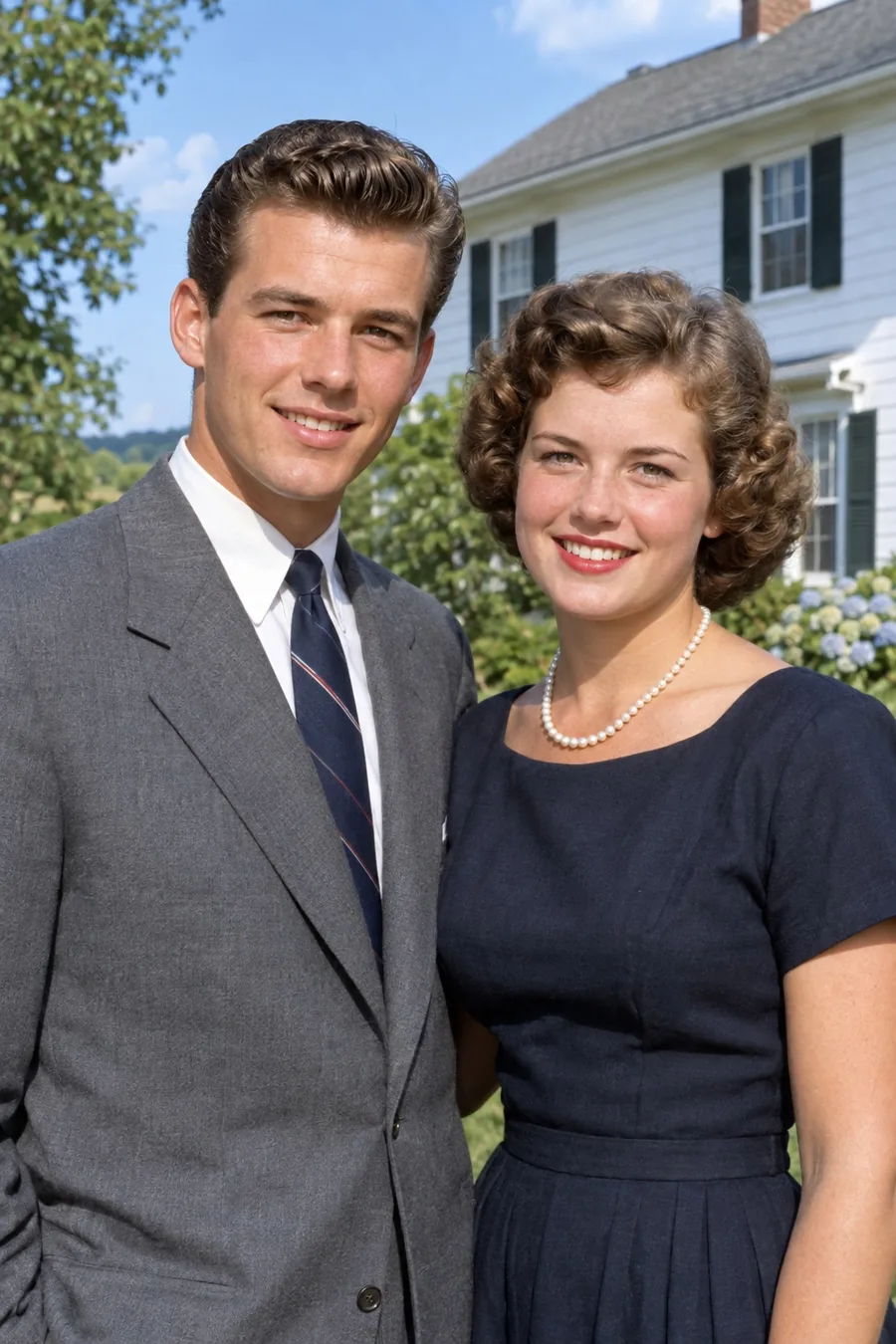
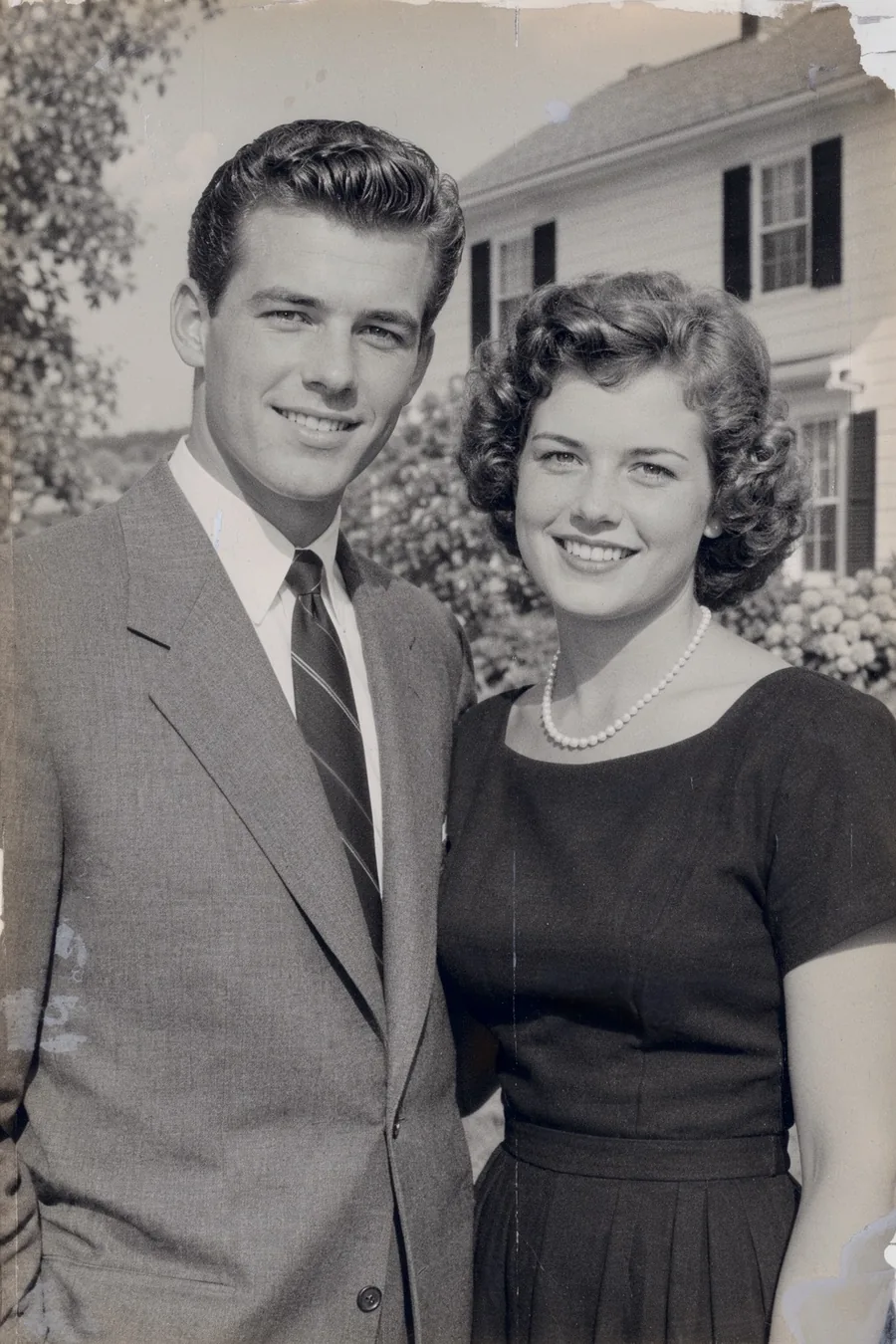
Get a good copy of the print
- Use a flatbed scanner if you have one, or photograph the print in soft daylight.
- Hold the phone straight above the print to avoid a tilted, stretched image.
- Avoid glare: turn off overhead lights and remove the print from behind glass.
- Fill the frame with the photo, not the table.
Restore first, then fix the eyes
Old photos are often soft, faded and scratched. Running the old photo restoration first gives the eye tools a sharper face to work with. After that, tap the face and open the eyes as you would on a new photo.
Know the limits
Faces in old group photos are often tiny. When a face is only a few pixels wide, there is little detail to work with, and the result may not look convincing. Large faces in portraits and close-ups work well.
Step by step
Scan or photograph the print
Straight on, in soft light, without glare.
Restore it
Use the old photo restoration in Expression Editor - Reshot AI.
Tap the face
Choose the person whose eyes are closed.
Open the eyes
Use the eye slider or Fix Everything.
Compare and save
Check the result against the scan, then save.
Try it on your own photo
Download Expression Editor - Reshot AI on the App Store.
Questions
Does restoration add color to black and white photos?
The sample above shows a black and white photo restored in color. Compare the result with the original before you save.
Can I fix a photo of a photo?
Yes, as long as the copy is sharp and taken straight on without glare.