How to open closed eyes in a photo on iPhone
A step-by-step guide to opening closed eyes in a photo you already took, with the eye slider, Retake or Fix Everything in Expression Editor - Reshot AI.
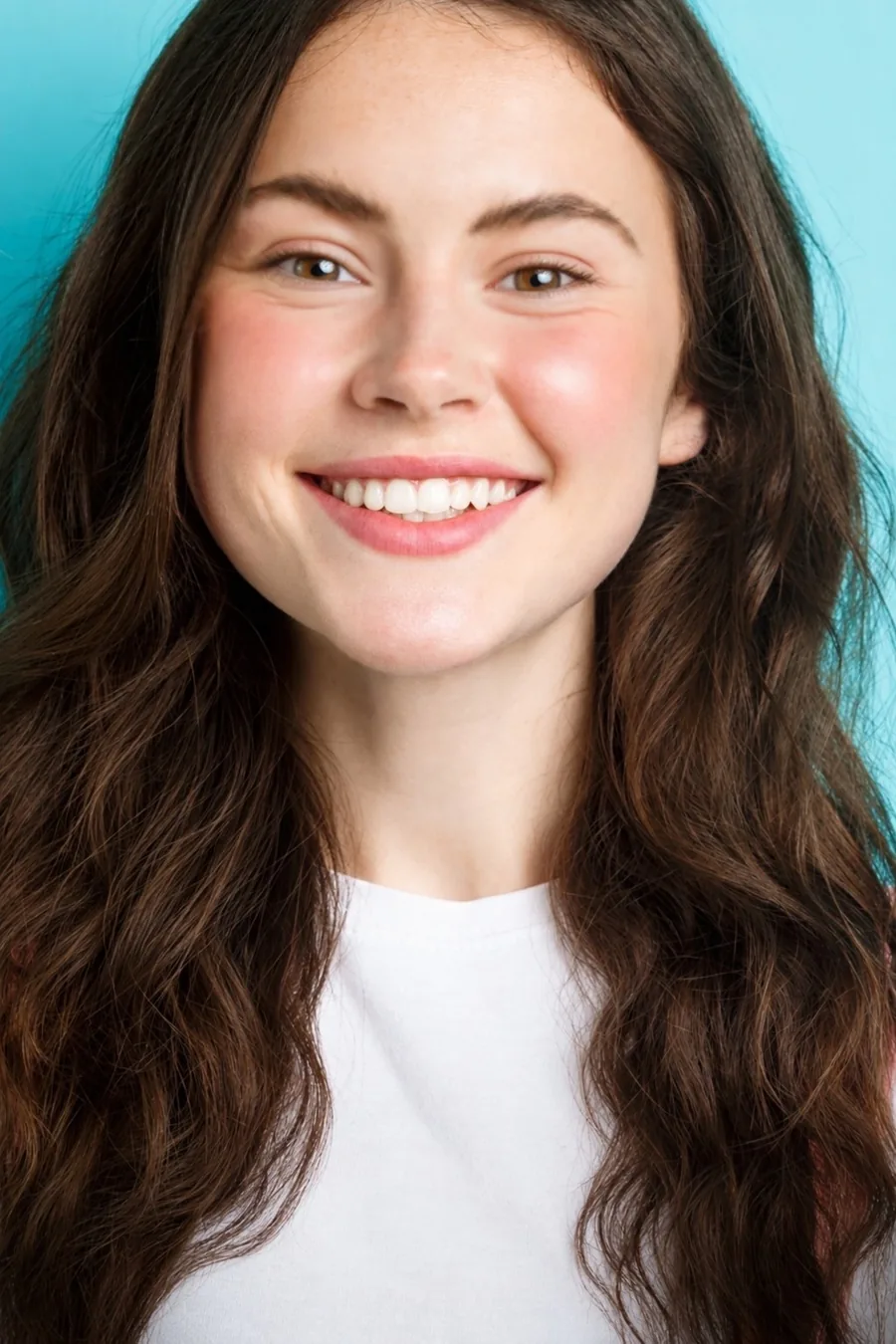
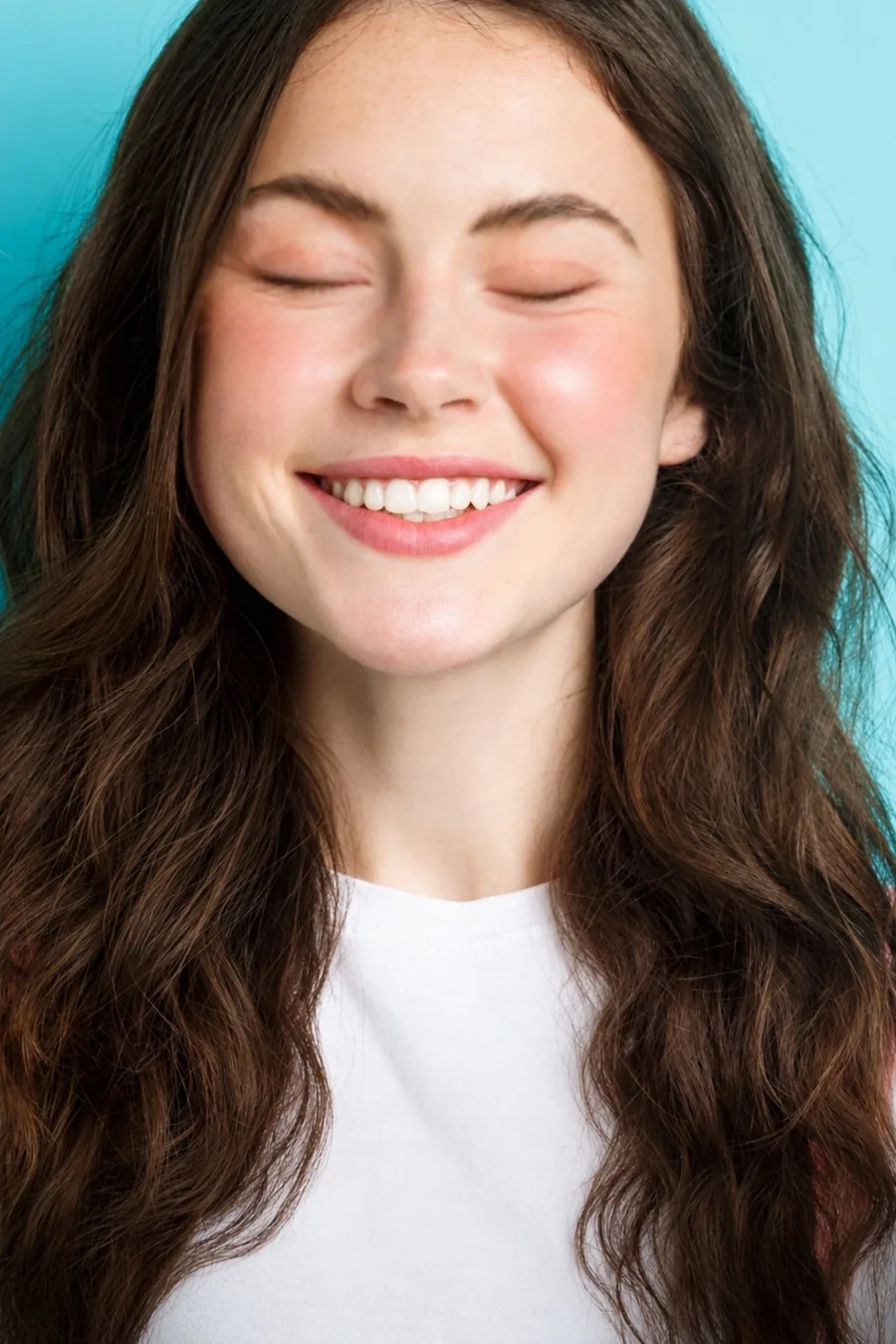
Download Expression Editor - Reshot AI, open the photo and tap the face. Move the eye slider from closed toward open, or tap Fix Everything to open the eyes automatically. Compare with the original and save.
What you need
An iPhone with iOS 17.0 or later, the app Expression Editor - Reshot AI, and the photo. Editing needs a Premium subscription or a credit pack. You do not need another photo of the person with open eyes.
The eye controls
The Eyes tool has a slider from closed to open, a control you drag to change where the eyes look, eyebrow controls and a wink. For eyes that are only half closed, a short move of the slider is usually enough. For eyes that are fully shut, Retake or Fix Everything makes a new take of the face with the eyes open.
Check before you save
- Both eyes should be the same size and look the same way.
- The eyes should match the expression: a big laugh usually comes with slightly narrowed eyes.
- Look at the eye color and the light reflections; they should match the rest of the photo.
Step by step
Install the app
Download Expression Editor - Reshot AI from the App Store.
Open the photo
Pick it from your library.
Tap the face
In a group photo, tap the person whose eyes are closed.
Open the eyes
Move the eye slider toward open, or tap Fix Everything.
Compare and save
Check the before and after view, then save.
Try it on your own photo
Download Expression Editor - Reshot AI on the App Store.
Questions
Do I need another photo of the person?
No. The app opens the eyes in the photo you have.
Can I add a wink instead?
Yes. The Eyes tool has a wink control.